3D model editing
Sometimes you want to change a model by hand: replace the deep part with a uniform resistivity, or insert a body to test whether the data need it. The two editors in this section do this interactively, on depth slices, and save the edited model as a new file.
Note
The editors open interactive windows, so they need GLMakie and a working OpenGL display.
The examples use the Cascadia model; see Example data for how to get it.
using MTGeophysics

model_file = "examples/cascadia/cascad_half_inverse.ws"
Replace everything below a depth
EditModelByLayers(model_file; target_resistivity = 1000.0)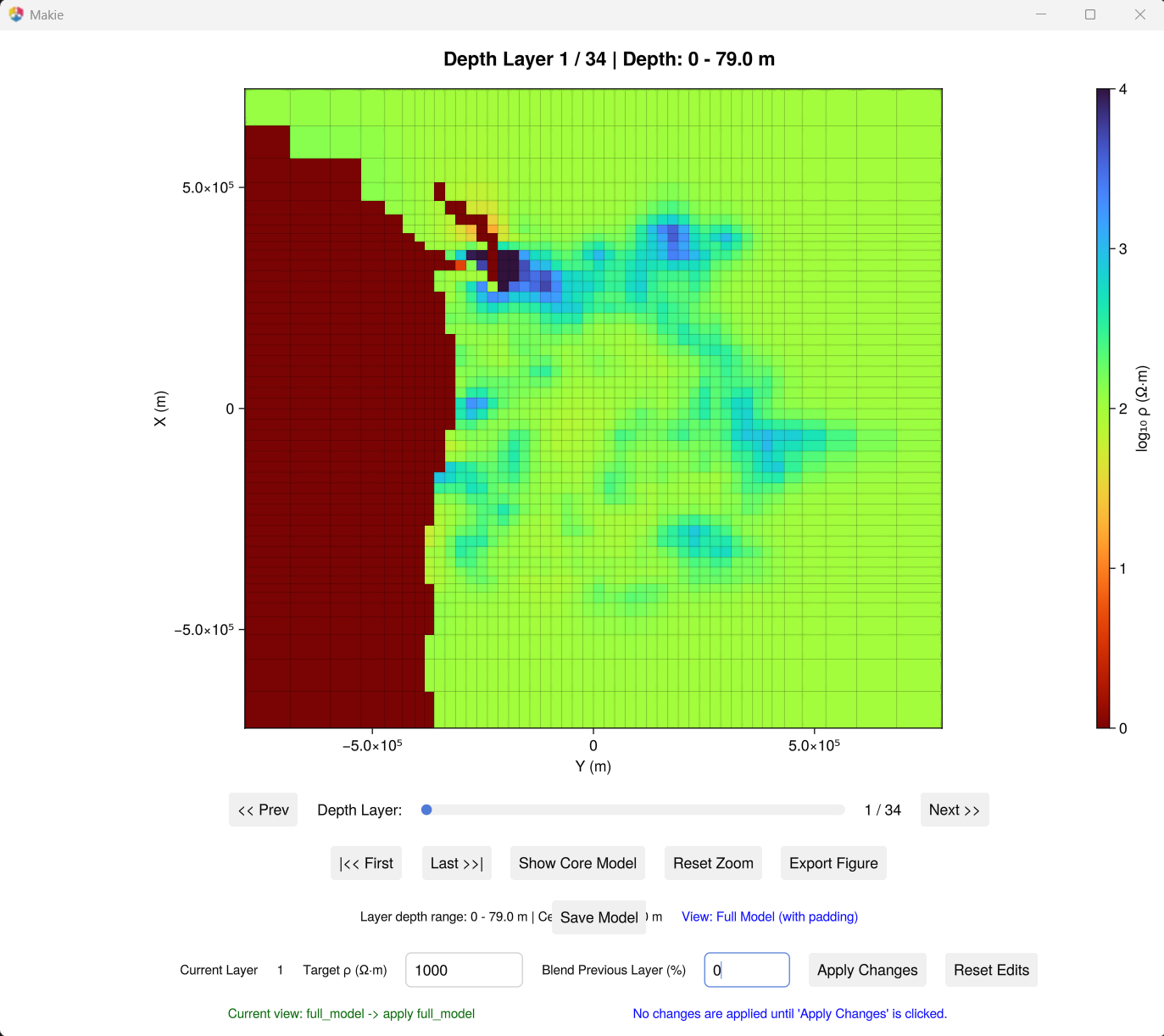
Move the depth slider to the layer where the change should start.
Enter the target resistivity (Ω·m). A blend percentage smooths the layer above.
Choose whether to edit the core only or the full model, padding included, with Show Core Model / Show Full Model.
Click Apply Changes, then Save Model.
The saved file name records what was done, for example <model>_modified_layer<N>_rho<R>_blendprev<B>_coreonly.rho.
Draw a zone and replace it
EditModelByDrawing(model_file; replacement_resistivity = 10000.0)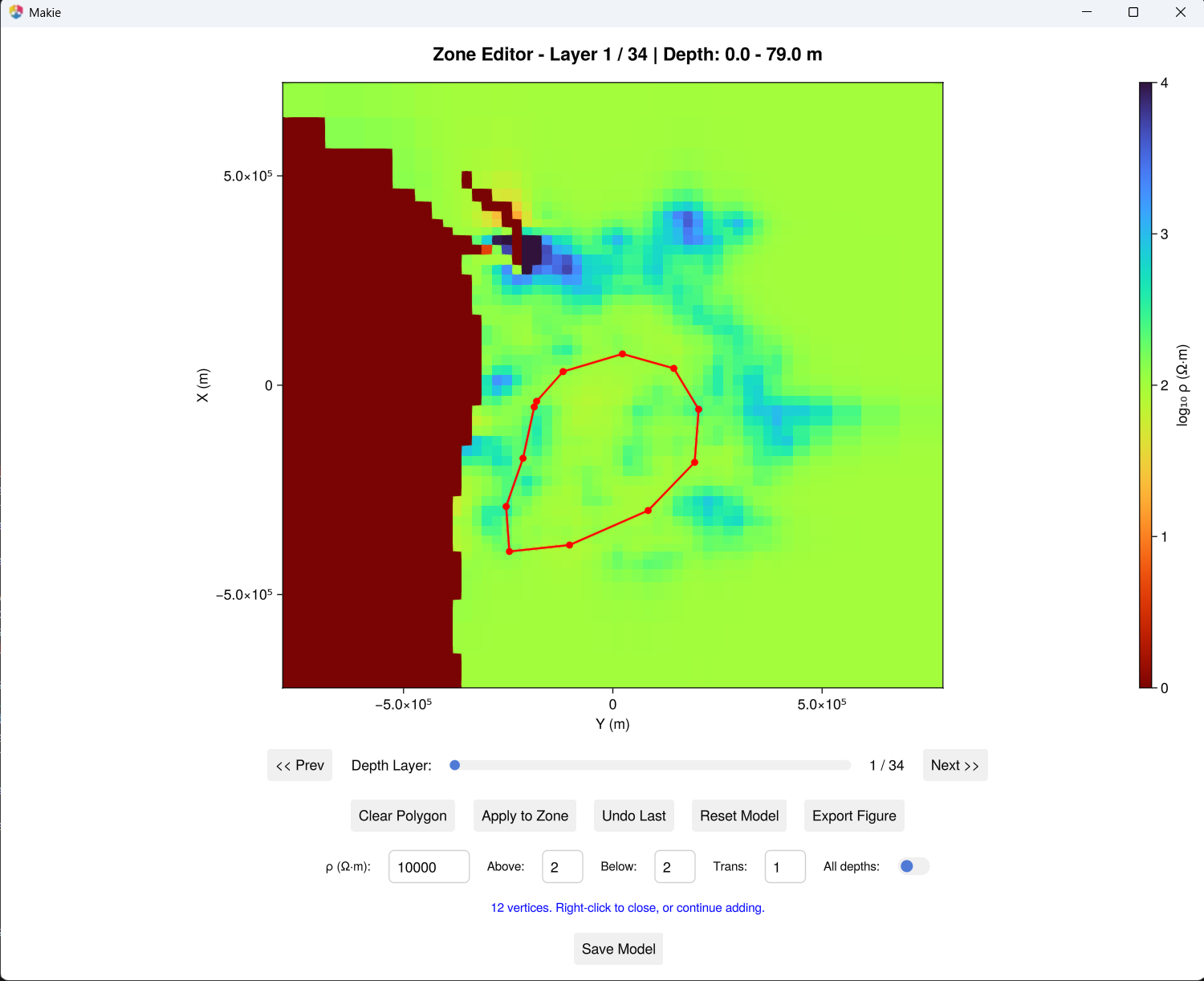
Left-click on the depth slice to add the corners of a polygon, and right-click to close it.
Set the target resistivity and how many layers above and below the slice to change. Transition layers blend the edge of the zone into the model, and All depths applies the change to the whole column.
Click Apply to Zone. Undo reverts the last change, Reset Model all of them.
Click Save Model.
From the command line
julia --project=. examples/manipulate_model_by_layers.jl <model.ws>
julia --project=. examples/manipulate_model_by_drawing.jl <model.ws>
The settings are keyword arguments of the two functions, and variables at the top of the scripts.